Firebase Admin Setup
In this section we will connect our Backend with Firebase.
- Log into your firebase console then go to your project.
- In the Firebase console, open Settings then go to Service Accounts tab.
- Click Generate New Private Key, then confirm by clicking Generate Key.
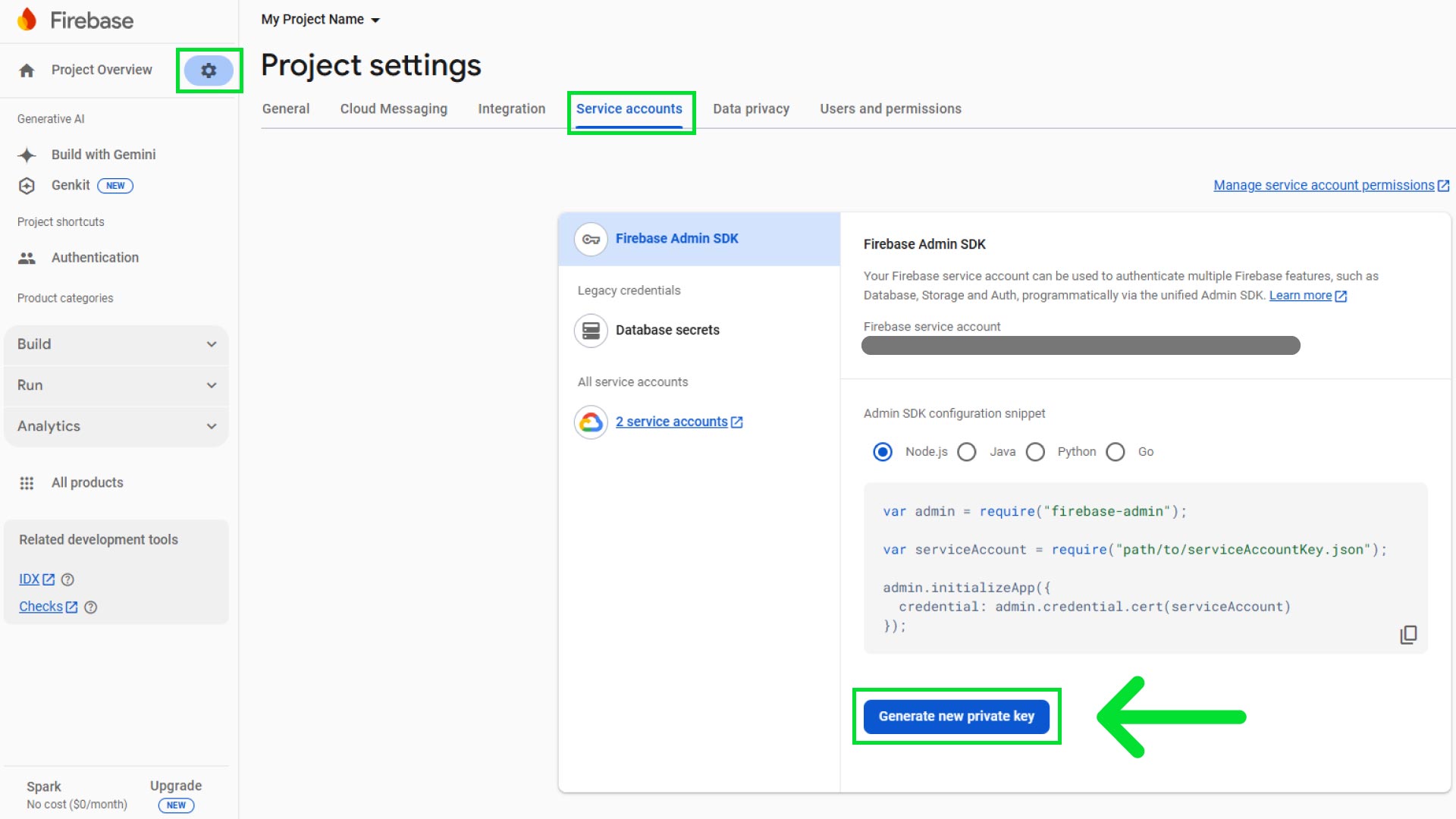
- It will provide you with a JSON file. Securely store the JSON file containing the key.
- Then open the backend code in VS code and go to
.envfile, then go to Firebase Admin SDK section and then place your private keys in the respected fields.
.env
# Firebase Admin SDK
FIREBASE_ADMIN_TYPE="*************"
FIREBASE_ADMIN_PROJECT_ID="**********"
FIREBASE_ADMIN_PRIVATE_KEY_ID="****************************************"
FIREBASE_ADMIN_PRIVATE_KEY="*******************************************......"
FIREBASE_ADMIN_CLIENT_EMAIL="**************************************************"
FIREBASE_ADMIN_CLIENT_ID="*********************"
FIREBASE_ADMIN_AUTH_URI="************************************"
FIREBASE_ADMIN_TOKEN_URI="**********************************"
FIREBASE_ADMIN_AUTH_PROVIDER_X509_CERT_URL="**************************************************"
FIREBASE_ADMIN_CLIENT_X509_CERT_URL="****************************************************************************************************"
FIREBASE_ADMIN_UNIVERSE_DOMAIN="************"
info
Official Firebase documentation for Initializing the Firebase Admin SDK in non-Google environments: https://firebase.google.com/docs/admin/setup#initialize_the_sdk_in_non-google_environments